Configuration & Signature
Configuration & Signature
This document covers merchant dashboard account setup, key configuration, and the signing process to help you prepare for integration.
Get Merchant Dashboard Account
After completing the onboarding, PayCools will send the merchant dashboard login credentials via email. Please follow the instructions in the email to log in to the admin account.
Get AppID & Keys
The merchant AppID required for API debugging can be obtained from the merchant dashboard. API signatures use the SHA256WithRSA algorithm. Merchants need to generate an RSA key pair and upload the public key to the merchant dashboard.
Configuration entry: Developer → App Details
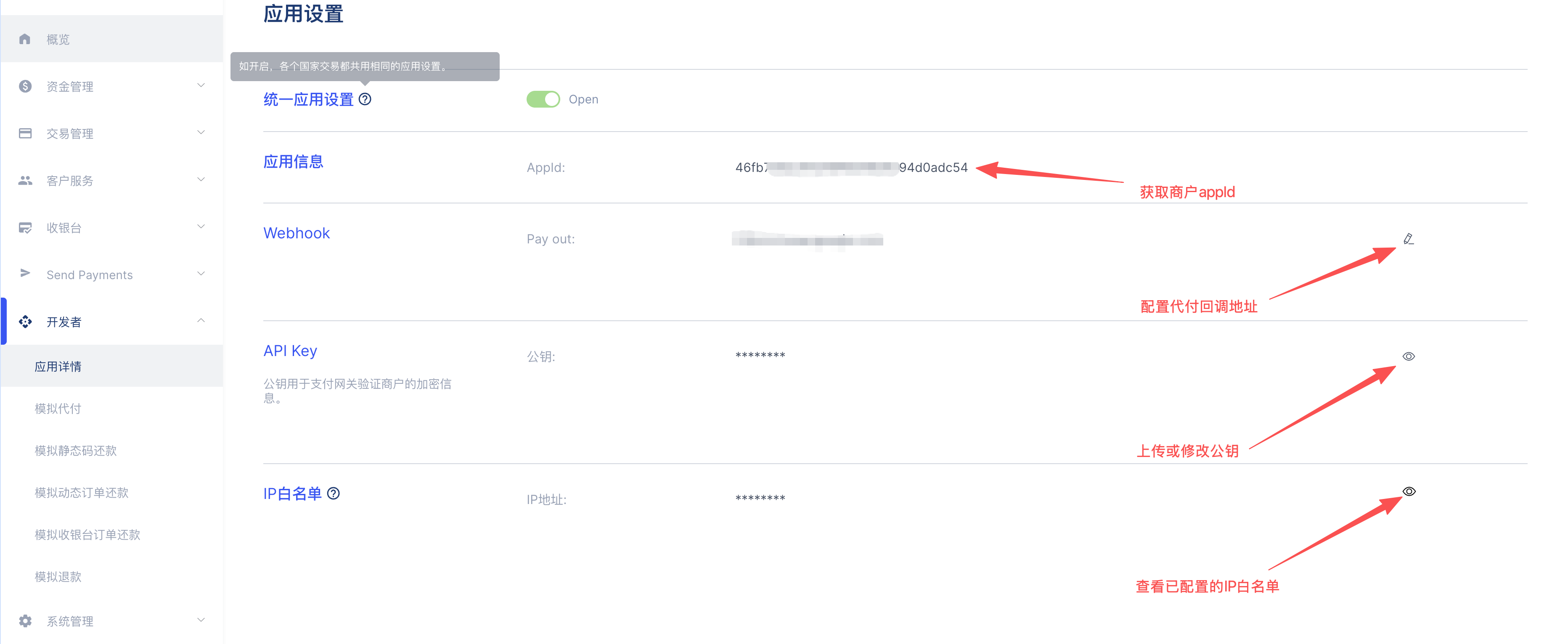
Key Configuration
Key Usage
The private key is kept by the merchant, while the public key should be uploaded to the merchant dashboard. When uploading, remove the -----BEGIN XXX KEY----- and -----END XXX KEY----- markers, as well as any line breaks and spaces.
Option 1: Generate Key Pair Online
Use the online tool provided by PayCools to generate a key pair. This tool is built on the browser's native Web Crypto API — the key generation process runs entirely locally and does not communicate with PayCools servers.
Option 2: Generate via Code
Merchants can also generate a key pair programmatically. The merchant private key is used to sign request payloads, and the merchant public key must be uploaded to the platform for signature verification to prevent payload tampering during network transmission. Additionally, obtain the PayCools callback public key from the integration group chat to verify signatures on callback payloads from the platform.
Signature
Unified Request Parameters
All API requests use the following unified structure:
| Parameter | Required | Type | Description |
|---|---|---|---|
| appId | Yes | string | Merchant AppID assigned by PayCools |
| sign | Yes | string | RSA signature of param |
| param | Yes | string | Business request parameters as a JSON string |
Signing Steps:
appIdis a fixed value assigned by PayCools — no additional processing needed;- Construct the business parameters according to the specific API documentation, serialize them into a JSON string, and use it as the value of
param; - Use the merchant RSA private key (PKCS#8 format) to sign
paramwith theSHA256WithRSAalgorithm, then Base64-encode the signature result as the value ofsign.
Complete Request Example
The following example demonstrates the full flow from constructing parameters to sending a request, using the cashier mode payment order creation as an example.
Environment URLs:
| Environment | URL |
|---|---|
| Test | https://globalapi-dev.paycools.com:8902 |
| Production | https://openapi.paycools.com |
Endpoint: POST /open-api/payment/checkout/generate
Step 1: Construct Business Parameters (param)
Serialize the business parameters into a JSON string according to the API documentation:
{
  "timestamp": 1715595802,
  "mchOrderId": "10e5595801938341100",
  "merchantLogo": "https://www.example.com/logo.png",
  "currency": "PH",
  "settlementCurrency": "PHP",
  "countryCode": "PH",
  "customerName": "John Doe",
  "email": "john@example.com",
  "mobile": "09123456789",
  "amount": 10000,
  "expireSeconds": 3600,
  "remark": "order remark",
  "notifyUrl": "https://www.example.com/notify",
  "redirectUrl": "https://www.example.com/return"
}
Note: The unit of
amountis cents.10000represents100.00.
Convert the above JSON into a single-line string to get the value of param:
{"timestamp":1715595802,"mchOrderId":"10e5595801938341100","merchantLogo":"https://www.example.com/logo.png","currency":"PH","settlementCurrency":"PHP","countryCode":"PH","customerName":"John Doe","email":"john@example.com","mobile":"09123456789","amount":10000,"expireSeconds":3600,"remark":"order remark","notifyUrl":"https://www.example.com/notify","redirectUrl":"https://www.example.com/return"}
Step 2: Sign param with RSA Private Key
Use the merchant private key to sign the param string above with the SHA256WithRSA algorithm to get the value of sign:
A5Vd8NcQvU3QT41Yee2jCIK58jDAKZ6kP5gEE4q7Yu92hUCY3k00FKTSlCNU+CcZm0LSrGbEMFMID3p7uvXaqy5khNv3kPndrgp7MIRHUmQnMgRK+g1XG7PzWdnrqlXc3g+L+kqVja+qrFRz+uVS6GLKLR1P4AtgTa9dok6NU7YTWOnG9r/FwIVx/At4czfEpI10pvg2TptVpiANmseGmz4G30hkaYTTNahkcOMQJn6PDFjivHvjNLZNJVOqHQzVUa+kca1yZZMPHtgxR647KjoY2oAjjl0Y45GL6zP9qHD/eVwcPPAPrRZ4K2o05OJnPf67fAcWNVqpnu6ZGQIXhQ==
Step 3: Assemble the Final Request Body
Combine appId, sign, and param into the complete request body:
{
  "appId": "733b887a4a784708bb369524db5b6ded",
  "sign": "A5Vd8NcQvU3QT41Yee2jCIK58jDAKZ6kP5gEE4q7Yu92hUCY3k00FKTSlCNU+CcZm0LSrGbEMFMID3p7uvXaqy5khNv3kPndrgp7MIRHUmQnMgRK+g1XG7PzWdnrqlXc3g+L+kqVja+qrFRz+uVS6GLKLR1P4AtgTa9dok6NU7YTWOnG9r/FwIVx/At4czfEpI10pvg2TptVpiANmseGmz4G30hkaYTTNahkcOMQJn6PDFjivHvjNLZNJVOqHQzVUa+kca1yZZMPHtgxR647KjoY2oAjjl0Y45GL6zP9qHD/eVwcPPAPrRZ4K2o05OJnPf67fAcWNVqpnu6ZGQIXhQ==",
  "param": "{\"timestamp\":1715595802,\"mchOrderId\":\"10e5595801938341100,\"merchantLogo\":\"https://www.example.com/logo.png\",\"currency\":\"PH\",\"settlementCurrency\":\"PHP\",\"countryCode\":\"PH\",\"customerName\":\"John Doe\",\"email\":\"john@example.com\",\"mobile\":\"09123456789\",\"amount\":10000,\"expireSeconds\":3600,\"remark\":\"order remark\",\"notifyUrl\":\"https://www.example.com/notify\",\"redirectUrl\":\"https://www.example.com/return\"}"
}
Step 4: Send HTTP Request
curl --location --request POST \
  'https://globalapi-dev.paycools.com:8902/open-api/payment/checkout/generate' \
  --header 'Content-Type: application/json' \
  --data-raw '{
    "appId": "733b887a4a784708bb369524db5b6ded",
    "sign": "A5Vd8NcQvU3QT41Yee2jCIK58jDAKZ6kP5gEE4q7Yu92hUCY3k00FKTSlCNU+CcZm0LSrGbEMFMID3p7uvXaqy5khNv3kPndrgp7MIRHUmQnMgRK+g1XG7PzWdnrqlXc3g+L+kqVja+qrFRz+uVS6GLKLR1P4AtgTa9dok6NU7YTWOnG9r/FwIVx/At4czfEpI10pvg2TptVpiANmseGmz4G30hkaYTTNahkcOMQJn6PDFjivHvjNLZNJVOqHQzVUa+kca1yZZMPHtgxR647KjoY2oAjjl0Y45GL6zP9qHD/eVwcPPAPrRZ4K2o05OJnPf67fAcWNVqpnu6ZGQIXhQ==",
    "param": "{\"timestamp\":1715595802,\"mchOrderId\":\"10e5595801938341100\",\"merchantLogo\":\"https://www.example.com/logo.png\",\"currency\":\"PH\",\"settlementCurrency\":\"PHP\",\"countryCode\":\"PH\",\"customerName\":\"John Doe\",\"email\":\"john@example.com\",\"mobile\":\"09123456789\",\"amount\":10000,\"expireSeconds\":3600,\"remark\":\"order remark\",\"notifyUrl\":\"https://www.example.com/notify\",\"redirectUrl\":\"https://www.example.com/return\"}"
  }'
Step 5: Platform Response
After a successful request, the platform returns the following response:
{
  "code": 10000,
  "message": "Success",
  "data": {
    "checkoutId": "CH1789964654026559488",
    "checkoutUrl": "https://cashier.paycools.com/checkout/NzQxPl1wE-cdtloi1h0pTgc23ZcdGdXiGGZ2YvywJ-o=",
    "status": "PENDING",
    "expiresTime": "2024-05-14 15:27:00"
  }
}
After receiving the checkoutUrl, return it to the frontend for redirection. The user will then be directed to the PayCools cashier page to complete the payment.
Appendix: RSA Code Examples (Java)
Generate RSA Key Pair
import java.security.*;
import java.util.Base64;

public class RsaGenerateKeyPair {
    public static void main(String[] args) throws NoSuchAlgorithmException {
        KeyPairGenerator keyPairGenerator = KeyPairGenerator.getInstance("RSA");
        keyPairGenerator.initialize(2048);
        KeyPair keyPair = keyPairGenerator.genKeyPair();

        PublicKey publicKey = keyPair.getPublic();
        byte[] publicKeyBytes = publicKey.getEncoded();
        String publicKeyBase64 = Base64.getEncoder().encodeToString(publicKeyBytes);
        System.out.println(publicKeyBase64);

        PrivateKey privateKey = keyPair.getPrivate();
        byte[] privateKeyBytes = privateKey.getEncoded();
        String privateKeyBase64 = Base64.getEncoder().encodeToString(privateKeyBytes);
        System.out.println(privateKeyBase64);
    }
}
The public key must be submitted to the PayCools platform. Do not disclose it to any third party.
The private key must be kept by the merchant. Do not share it with anyone.
After the merchant signs the request parameters with the private key, the platform will verify the signature using the corresponding public key. Requests that fail verification will be rejected.
RSA Signing
Sign the param string using the merchant private key:
import java.security.KeyFactory;
import java.security.Signature;
import java.security.spec.PKCS8EncodedKeySpec;
import java.util.Base64;

public class RsaSign {
    public static final String PRIVATE_KEY = "<your_private_key>";

    public static void main(String[] args) throws Exception {
        String param = "{\"timestamp\":1715595802,\"mchOrderId\":\"10e5595801938341100\","
            + "\"merchantLogo\":\"https://www.example.com/logo.png\","
            + "\"currency\":\"PH\",\"settlementCurrency\":\"PHP\","
            + "\"countryCode\":\"PH\",\"customerName\":\"John Doe\","
            + "\"email\":\"john@example.com\",\"mobile\":\"09123456789\","
            + "\"amount\":10000,\"expireSeconds\":3600,"
            + "\"remark\":\"order remark\","
            + "\"notifyUrl\":\"https://www.example.com/notify\","
            + "\"redirectUrl\":\"https://www.example.com/return\"}";

        Signature signature = Signature.getInstance("SHA256withRSA");
        signature.initSign(KeyFactory.getInstance("RSA")
            .generatePrivate(new PKCS8EncodedKeySpec(
                Base64.getDecoder().decode(PRIVATE_KEY))));
        signature.update(param.getBytes());
        String sign = Base64.getEncoder().encodeToString(signature.sign());
        System.out.println(sign);
    }
}
RSA Signature Verification
Verify callback data using the platform public key:
import java.security.KeyFactory;
import java.security.Signature;
import java.security.spec.X509EncodedKeySpec;
import java.util.Base64;

public class RsaVerifySign {
    public static final String PUBLIC_KEY = "<platform_public_key>";

    public static void main(String[] args) throws Exception {
        String param = "<callback_param>";
        String sign = "<callback_sign>";

        Signature signature = Signature.getInstance("SHA256withRSA");
        signature.initVerify(KeyFactory.getInstance("RSA")
            .generatePublic(new X509EncodedKeySpec(
                Base64.getDecoder().decode(PUBLIC_KEY))));
        signature.update(param.getBytes());
        boolean result = signature.verify(Base64.getDecoder().decode(sign));
        System.out.println(result);
    }
}