Merchant Dashboard Payout
Merchant Dashboard Payout
No technical integration is required. Log in to the Merchant Dashboard to send payouts to local bank accounts or e-wallets, supporting small-value payouts (single / batch) and large-value payouts.
Small-Value Payouts
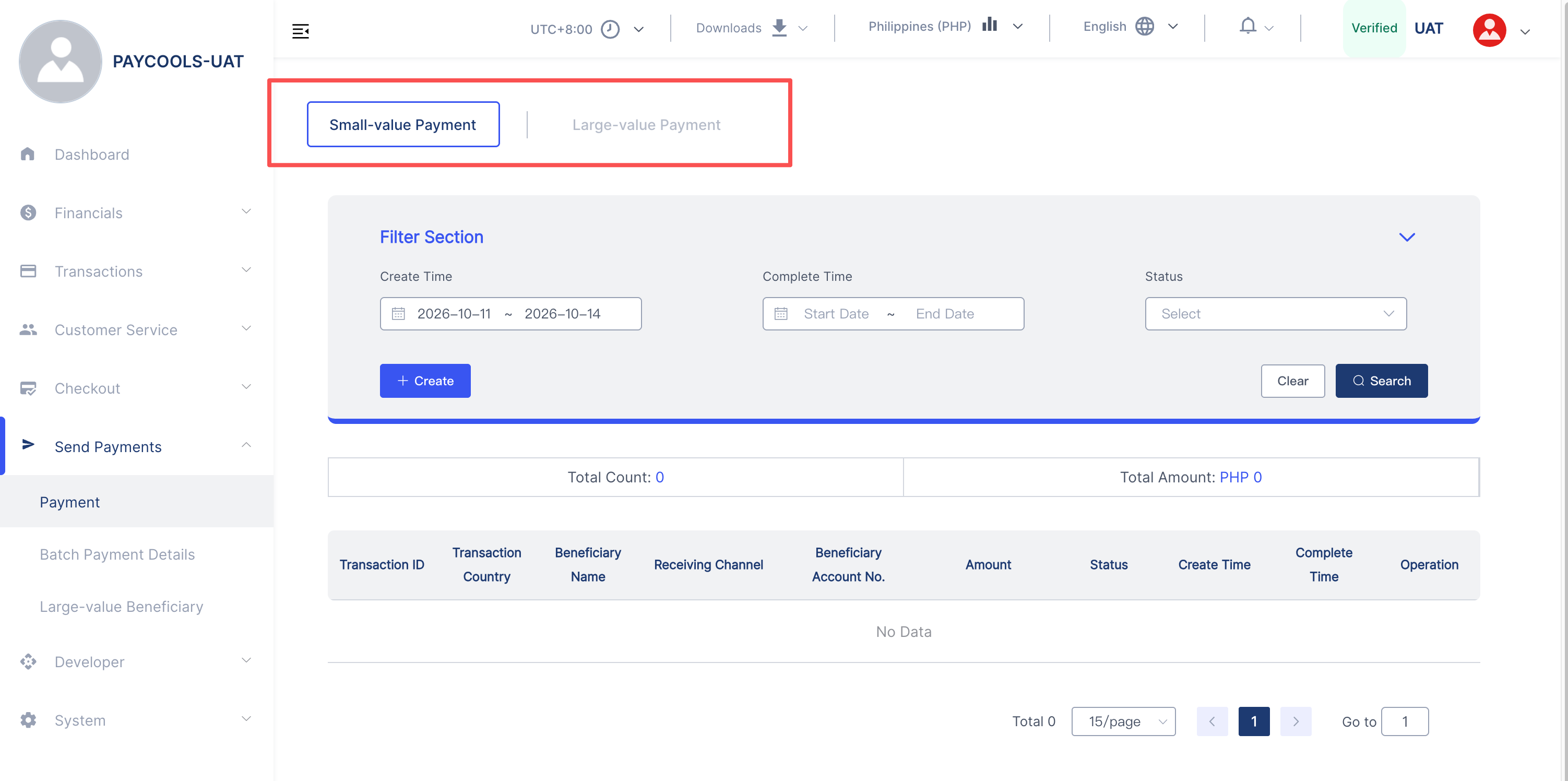
Open the Send Payments page in the Merchant Dashboard. The page has two tabs, Small-value Payment and Large-value Payment. Small-value payouts support single and batch creation. A payout is pushed to the real disbursement channel as soon as it is created.
Figure: Payout list — The top of the page shows the Small-value / Large-value tabs, followed by filters and the payout record list.
Create a Payout
Click Create, then choose a single payout or a batch payout.
Figure: New payout — The dialog opened by clicking Create, where you can choose Single Payment or Batch Small-value Payment.
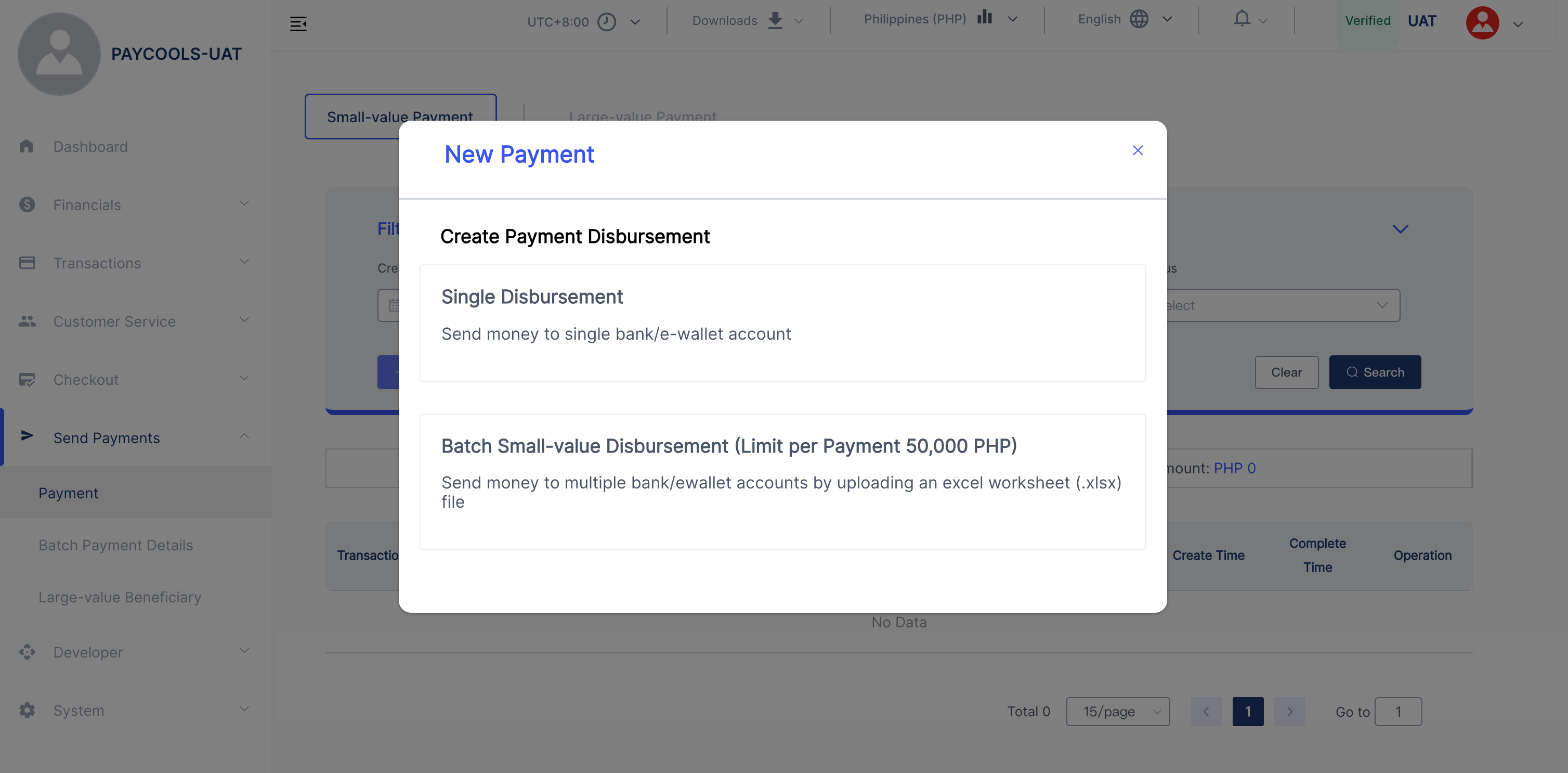
Single payout: Pay a single bank account or e-wallet.
- Select Single Payment.
- Enter the payout information and confirm creation.
Batch small-value payout: Pay multiple bank accounts or e-wallets by uploading a spreadsheet template with multiple transactions at once. See the requirements and common errors below.
Batch Small-Value Payouts
Batch small-value payout is used to pay multiple recipients (bank accounts or e-wallets) at once: download the standard Excel template (templates differ by country; download the template for the relevant country), fill in the recipient information in the required format, and upload the file. The system validates the file automatically and initiates each payout.
Process
| Step | Action | Description |
|---|---|---|
| ① | Download the template and fill in recipient data | The template sheet is named Template; do not change column names |
| ② | Select the file and submit | The system generates a batch number and validates the file |
| ③ | Enter the MFA code | Up to 5 incorrect attempts within 24 hours; contact an administrator if exceeded |
| ④ | The system parses the file and shows a data preview | The file enters asynchronous processing |
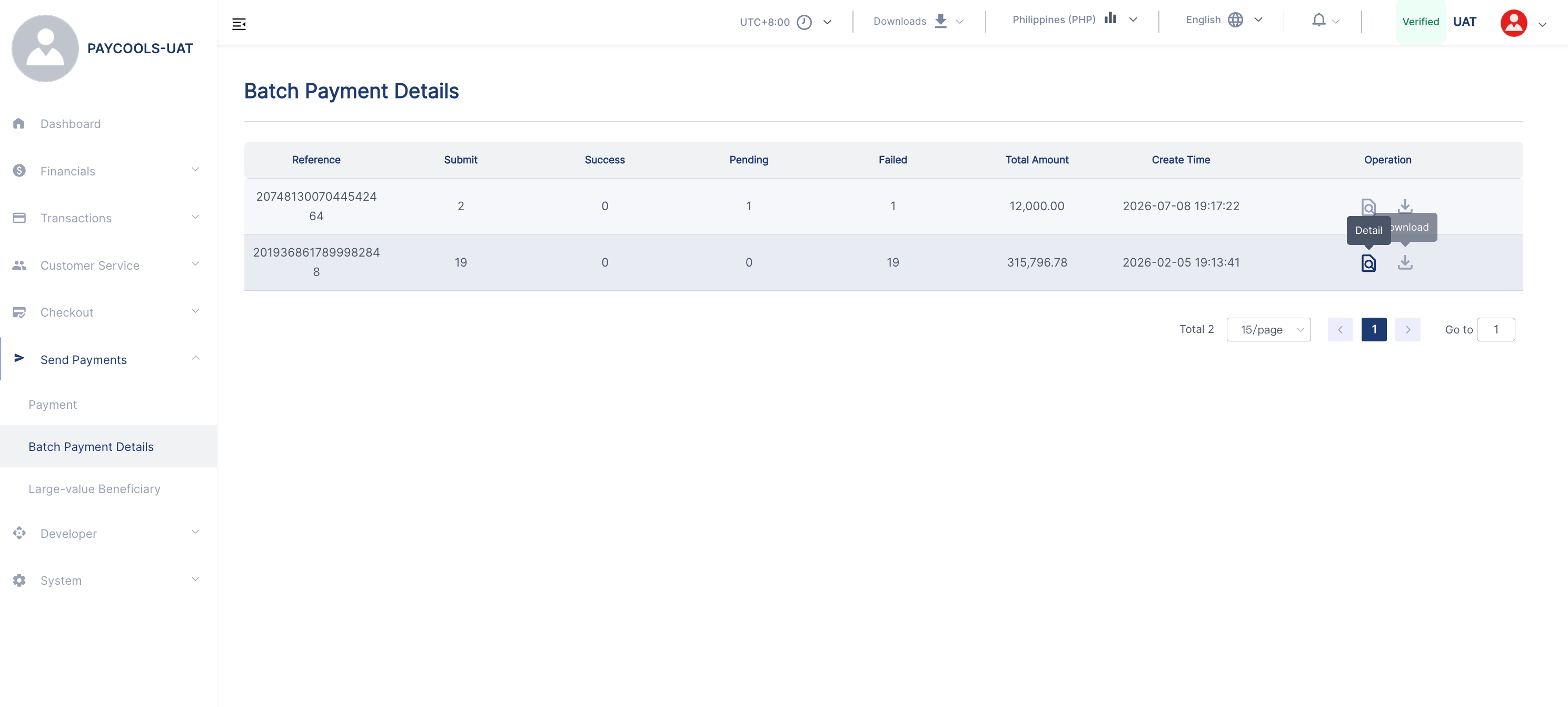
| ⑤ | View the result in Batch Upload Records | View submitted, successful / processing / failed counts and amount summaries by batch, and download details |
Figure: Batch upload records — One row per batch, showing submitted count, successful / processing / failed counts and amount summaries. The action column allows viewing details or downloading the detail file.
Excel Template Requirements
The template columns and validation rules are listed below. An English name in an error message refers to the corresponding template column (for example, Beneficiary Name means the Recipient Name column has a problem).
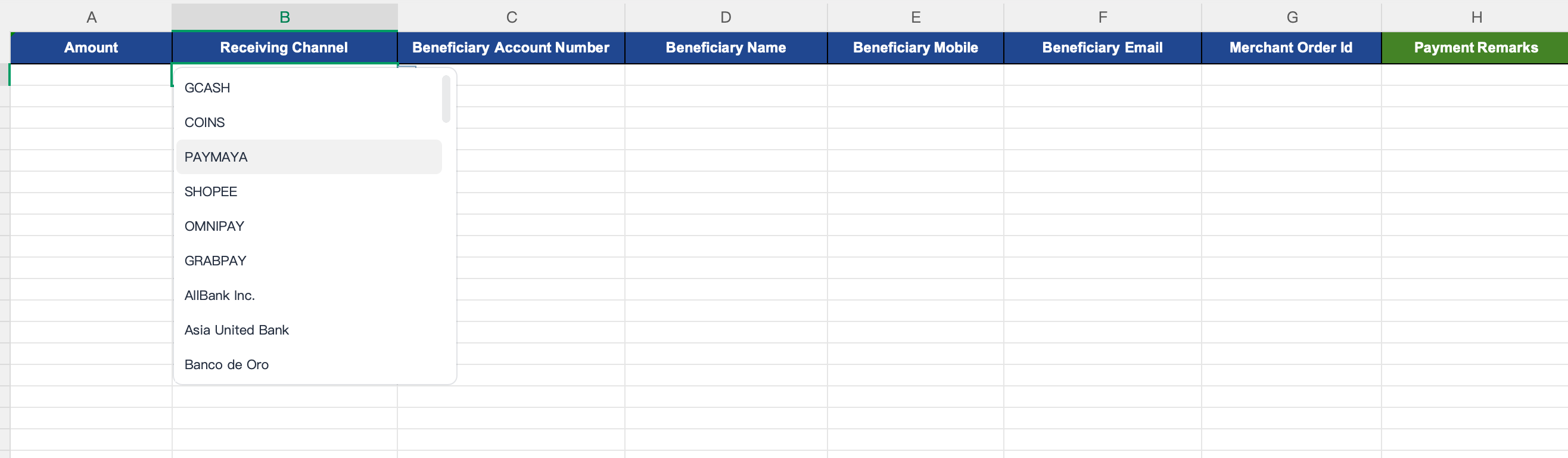
Figure: Standard Excel template — Column names and order are fixed. Columns such as Receiving Channel have drop-down options.
**Do not modify the header row or data format. ** Changing headers, adding or removing columns, or changing cell formats may corrupt the file structure and cause validation to fail during upload.
When filling in the file, select values from the cell drop-down lists (for example, Receiving Channel). The drop-down options match the channels supported by the platform. Manual entry can cause a Receiving Channel error due to name differences (such as missing spaces or different capitalization).
Common Columns
| Template Column | Required | Requirements |
|---|---|---|
Amount | Required | Numeric, up to 2 decimal places (no decimals for Indonesia); country limits are listed below |
Receiving Channel | Depends on type | Enter the full name of the bank / e-wallet and ensure it is supported in that country; leave blank for PromptPay in Thailand |
Beneficiary Account Number | Required | Bank account or e-wallet account; e-wallets have format requirements (see below) |
Beneficiary Mobile | Depends on country | Required for Indonesia; optional in other countries but must follow the country format |
Beneficiary Name | Required | Recipient account holder name. Recorded and passed to the channel only; not validated for correctness or authenticity |
Payment Remarks | Depends on country | Required for the UAE; name + recipient address must not exceed 140 characters |
Beneficiary Email | Optional | Must be a valid email address if provided |
Merchant Order Id | Optional | No more than 50 characters and must not duplicate a historical order; used for idempotency. If omitted, the system generates one |
Beneficiary Address | Optional | Combined with the name column, must not exceed 140 characters |
Country-Specific Columns
| Template Column | Values | Rules |
|---|---|---|
Beneficiary Account Type | BANK / PROMPTPAY / EWALLET / SBP | Required for Thailand and Russia (the row fails if omitted); fill in as instructed for Saudi Arabia and the UAE; not required for the Philippines / Indonesia / Malaysia / Vietnam |
Beneficiary Type | NATIONAL_ID / MOBILE_NUMBER / EWALLET_ID / BANK_ACCOUNT / CARD_NUMBER | Thailand: required for PromptPay and must be blank for BANK; required for Russia |
Beneficiary Category | INDIVIDUAL / ORGANIZATION | Required only for Russia |
| Saudi-specific columns | Receiver IBAN, Swift Code, Receiver Bank Address, Receiver English / Local First / Last Name | Missing values cause xxx is required |
Thailand Combination Rules (the row fails if not met)
| Recipient Account Type | Requirement |
|---|---|
BANK | Beneficiary Type must be blank; Receiving Channel is required |
PROMPTPAY | Receiving Channel must be blank; Beneficiary Type is required (NATIONAL_ID or MOBILE_NUMBER) |
Russia Combination Rules (the row fails if not met)
| Recipient Account Type | Requirement |
|---|---|
| All types | Beneficiary Category, Beneficiary Account Type, and Beneficiary Type are all required |
SBP | The account must be a 10-digit mobile number starting with 9; Receiving Channel is required |
EWALLET | Beneficiary Type must be EWALLET_ID; Receiving Channel is required |
BANK + BANK_ACCOUNT | Receiving Channel is required |
BANK + CARD_NUMBER | Receiving Channel must be blank |
Country Amount Limits and Mobile Number Formats
| Country | Single Payout Limit | Mobile Number Requirement | E-Wallet Account Requirement |
|---|---|---|---|
| Philippines PH | 50,000 PHP | Optional; if provided, 11 digits starting with 09 | Starts with 09 |
| Indonesia ID | 250,000,000 IDR | Required, 10–13 digits starting with 08; amount must be an integer | Starts with 08 |
| Thailand TH | 50,000 THB | Optional; if provided, 10 digits starting with 0 / 6 / 8 / 9 | Leading 0 is added automatically |
| Malaysia MY | 50,000 MYR | Optional; if provided, starts with 01 | Starts with 01; TNG wallets only need a non-empty value |
| UAE AE | 55,000 AED | No mandatory format | — |
| Saudi Arabia SA | 37,500 SAR | Must be 5XXXXXXXX / 9665XXXXXXXX / 05XXXXXXXX | — |
| Russia RU | 500,000 RUB | No mandatory format | See the SBP rules above |
| Vietnam VN | 300,000,000 VND | No mandatory format | — |
The system also handles the following automatically: full bank / wallet names are converted to internal short names; missing leading 0s in wallet accounts for the Philippines / Indonesia / Malaysia / Thailand are added; rows where all six columns (amount, name, account, channel, email, remarks) are empty are ignored and are not counted as failures.
Common Errors and Handling
Failure Reason (single-row failure)The file was uploaded successfully, but one row failed validation or payout. The reason is shown in the order's Failure Reason field; other rows are unaffected. Correct the row and upload a new file containing only the rows to be paid again.
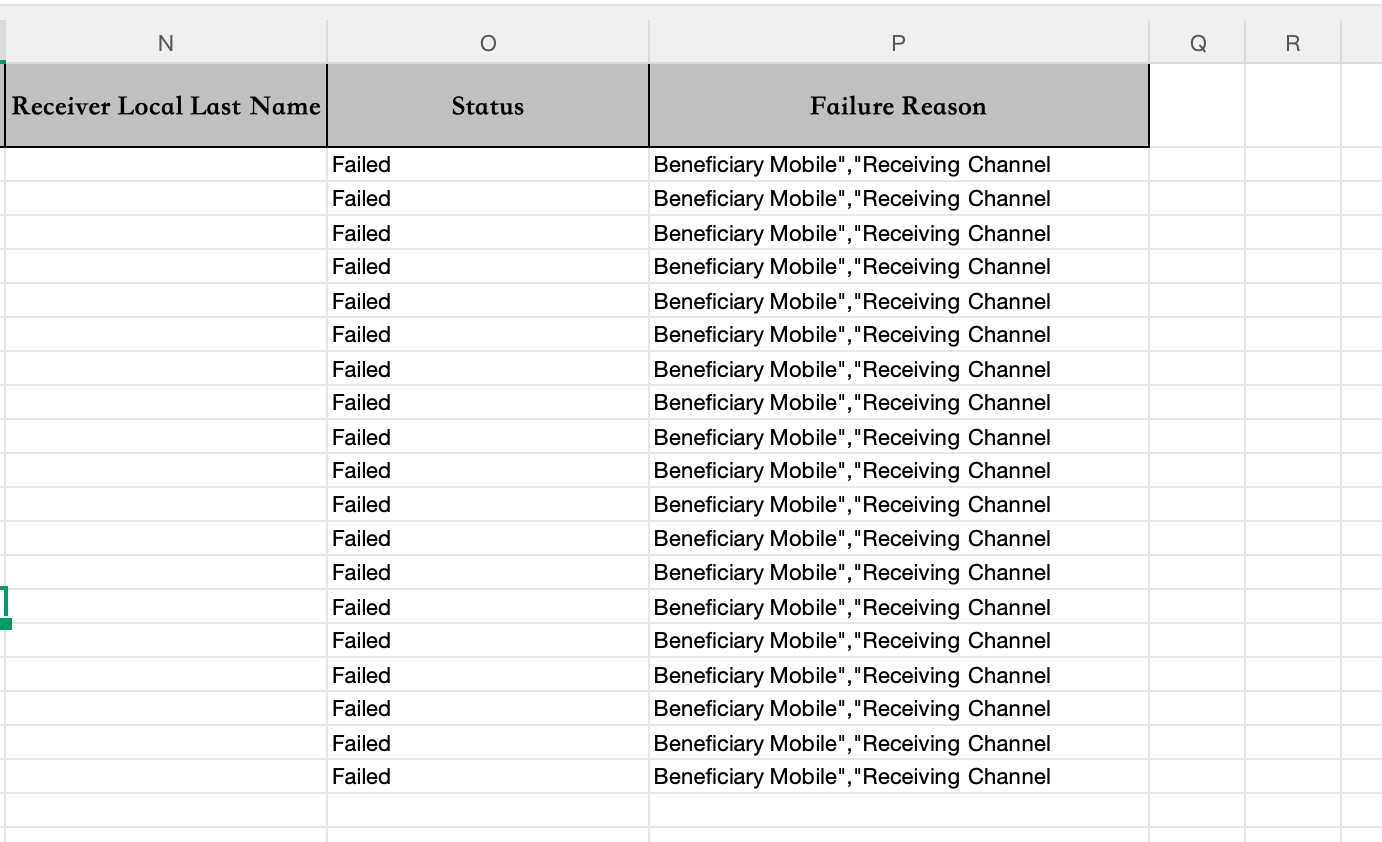
In Batch Upload Records, click Download to export the batch details. The Status and Failure Reason columns show the result and failure cause for each row.
Figure: Batch detail download — The Status column shows Failed, and Failure Reason gives the cause (for example, Beneficiary Mobile","Receiving Channel means those two columns failed validation).
If the failure reason is a template column name (such as Amount, Beneficiary Name, or Receiving Channel), the column content failed basic validation. Check that column directly.
Amount and Balance
| Failure Reason | Problem | Handling |
|---|---|---|
| Amount | Amount is blank or not numeric (maximum 2 decimal places) | Correct the amount format in that row |
| The amount cannot be greater than xxx | Exceeds the country's single-payout limit | Reduce the amount or split it into multiple payouts |
| The amount cannot be blank | Amount is blank | Add the amount |
| Insufficient balance | Merchant balance is insufficient. Balance is checked row by row in file order, so earlier rows may succeed while later rows fail | Top up and upload the failed rows again |
Receiving Channel
| Failure Reason | Problem | Handling |
|---|---|---|
| Receiving Channel | Invalid receiving channel: the bank / wallet name does not exist in that country or cannot be matched | Check that the channel name matches the country's supported drop-down list |
| Invalid: Receiving Channel must be empty for PromptPay | (Thailand) A receiving channel was entered for PromptPay | Leave the column blank |
Recipient Account and Mobile Number
| Failure Reason | Problem | Handling |
|---|---|---|
| Beneficiary Account Number | Recipient account is blank | Complete the required column |
| Recipient Account Number | Invalid e-wallet account format (Philippines 09 / Indonesia 08 / Malaysia 01; Russia SBP requires 10 digits starting with 9) | Correct the format for the country |
| mobile format is invalid | Mobile number does not match the country format; a blank Indonesian mobile number also causes this error | Correct the format |
Recipient Information
| Failure Reason | Problem | Handling |
|---|---|---|
| Beneficiary Name | The column is blank (only presence is checked, not whether it matches the account holder name) | Complete the required column |
| Beneficiary Email | Invalid email format | Correct it or leave it blank |
| Payment Remarks | (UAE) Payment remarks are blank | Add remarks |
| Beneficiary Account Type / Missing: ... is required | (Thailand / Russia) Recipient account type is blank | Fill in BANK / PROMPTPAY / EWALLET / SBP |
| Beneficiary Type | Recipient type value is outside the allowed range | Correct it using the values above |
Large-Value Payouts
Large-value payouts require you to create a large-value beneficiary and complete review before initiating a payout to that beneficiary.
Large-value payouts are disabled by default. Contact your account manager to enable them.
Create a Large-Value Beneficiary
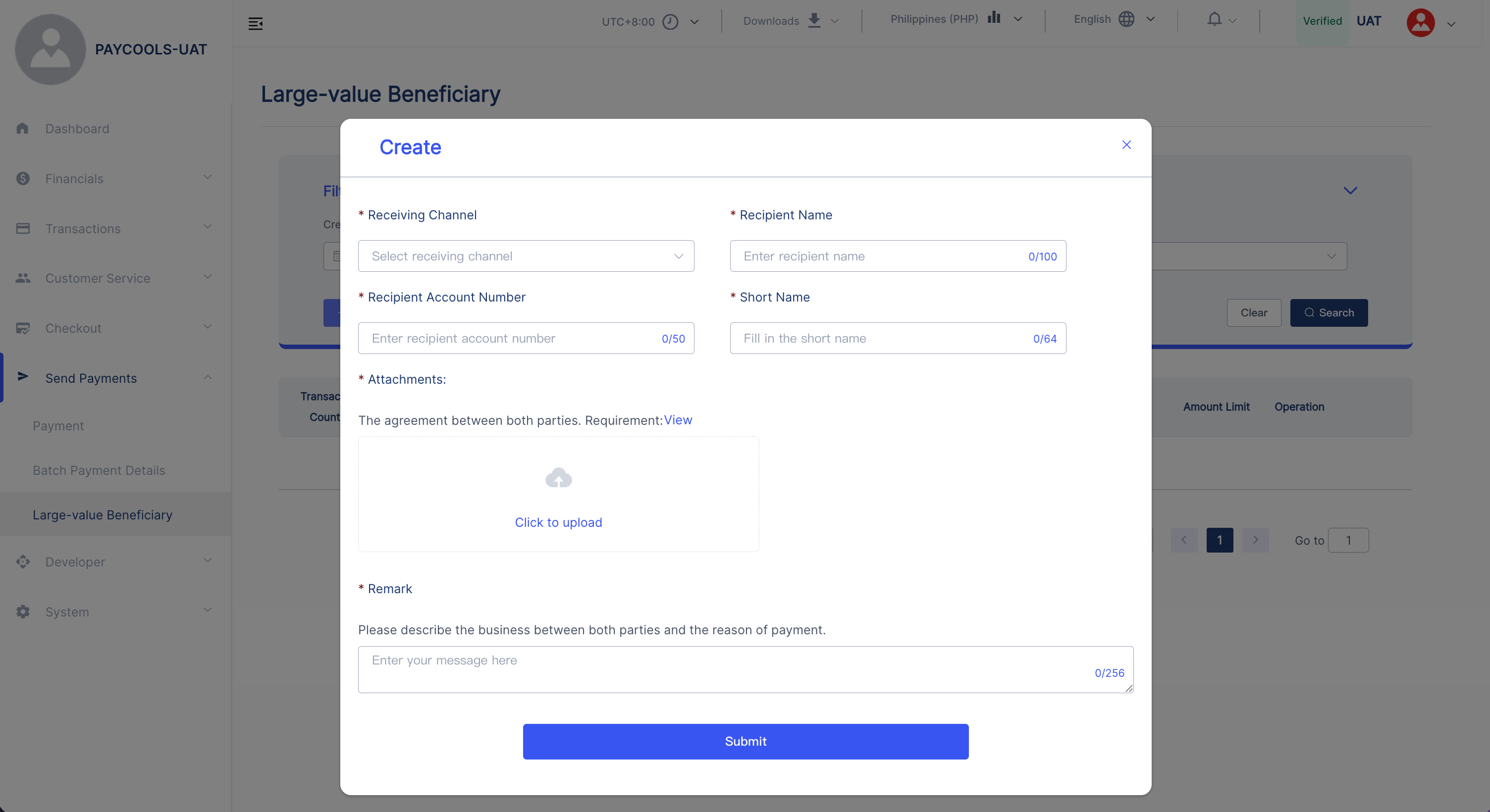
- Open the Large-value Beneficiary page and click Create.
- Enter the receiving channel, beneficiary name, beneficiary account, and short name.
- Upload the cooperation contract between both parties as an attachment.
- Enter remarks briefly describing the business relationship and the reason for payment.
- Click Submit and wait for review.
Figure: Create a large-value beneficiary — Enter the receiving channel, beneficiary name / account, and short name, and upload the cooperation contract and remarks.
After approval, the beneficiary can be used for large-value payouts.
Initiate a Large-Value Payout
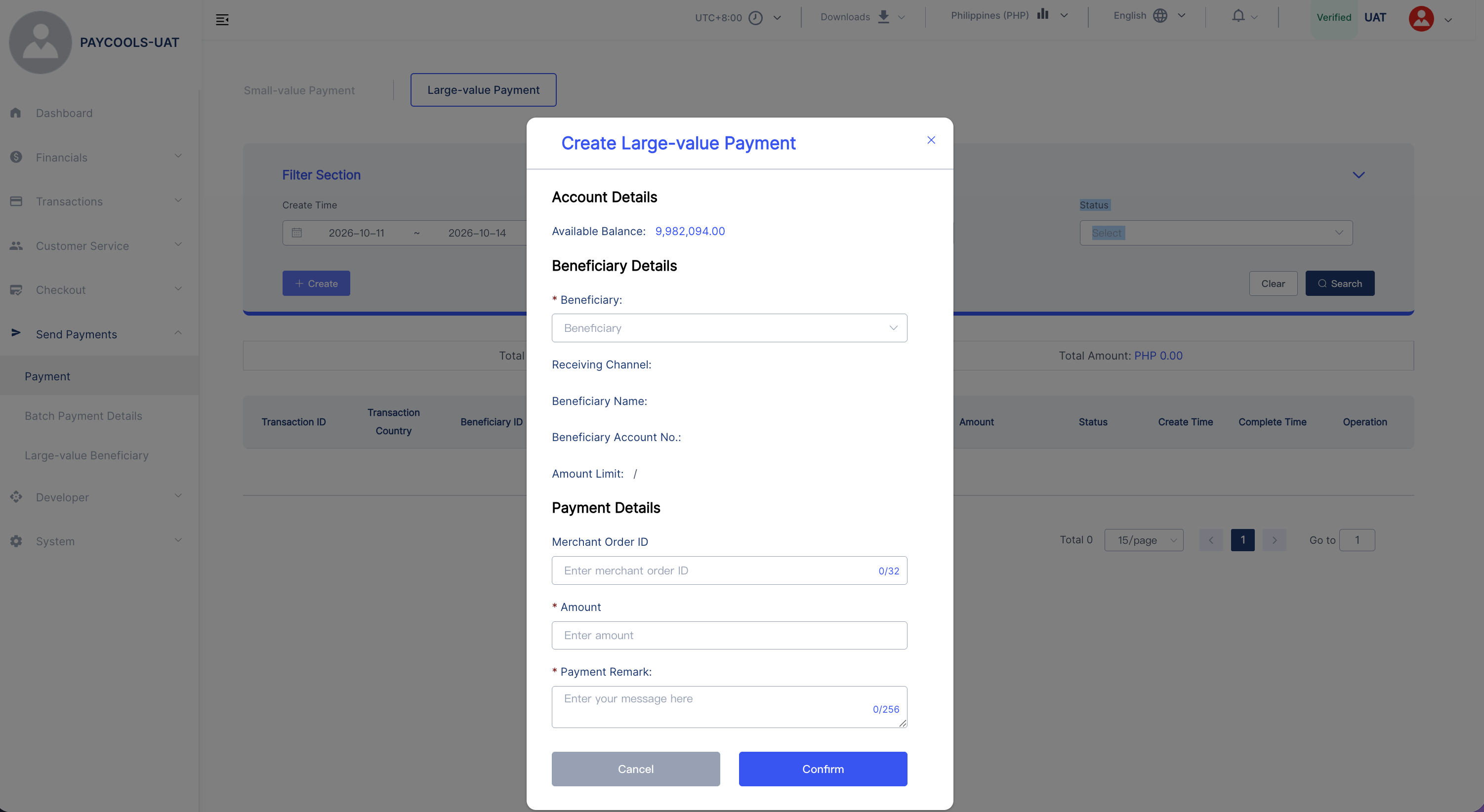
- Open the Large-value Payment tab and click Create.
- Select an approved large-value beneficiary, then enter the merchant order number (optional), payout amount, and payout remarks.
- Enter the MFA code and confirm. The payout is then pushed for disbursement.
Figure: Create a large-value payout — Select an approved large-value beneficiary, enter the amount and remarks, and confirm to initiate the payout.
Payout and Order Status
Payouts are processed asynchronously. After a transaction reaches its final status, the result can be obtained through:
| Method | Description |
|---|---|
| Callback notification | PayCools sends a notification to the callback URL configured by the merchant on the platform |
| Dashboard | Log in to the Merchant Dashboard to view each payout's transaction status |
Batch small-value payouts can be viewed by batch in the payout list. The statuses are:
| Status | Meaning | Final |
|---|---|---|
| PENDING | Submitted and not yet processed | No |
| COMPLETED | Payout completed | Yes |
| FAILED | Validation failed or payout failed | Yes |
Funds for failed orders are not deducted (in the limited cases where the channel accepted the payout but it ultimately failed, the channel's final result applies and the funds are returned).