Payment Link
Payment Link
Create and manage payment links in the Merchant Dashboard, then share the link or QR code with customers to complete payments.
How Payment Link Works
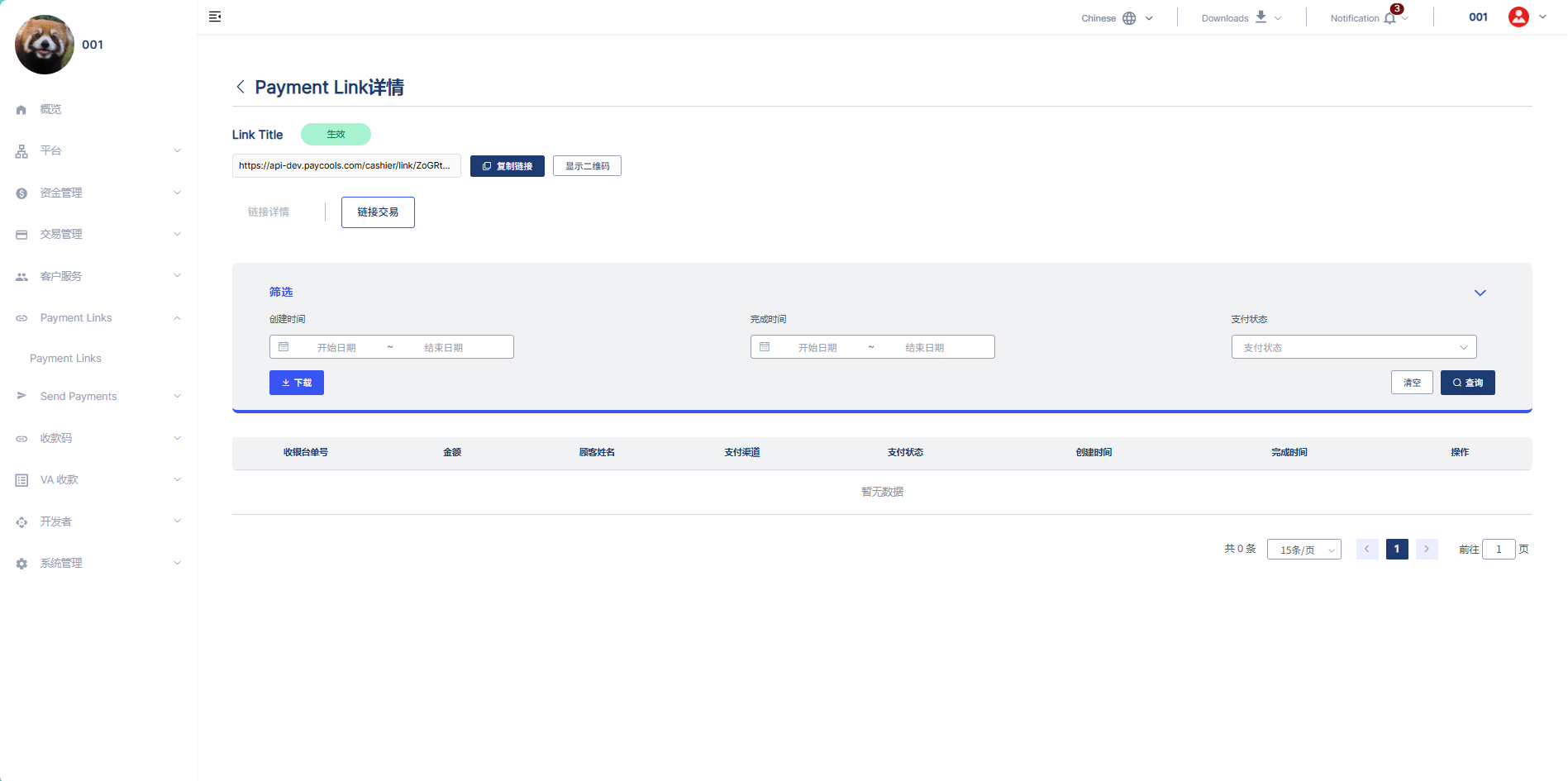
You can create and manage payment links on the Payment Links page in the Merchant Dashboard. Once created, share the link or QR code with your customers; the customer opens the PayCools-hosted payment page, selects an available payment method, and completes the payment. You can view the transactions generated through the link in the payment link details.
Creating a Payment Link
Before creating a payment link, first choose how the payment amount is set. Apart from how the payment amount is determined, other information such as the payment description can be filled in under all three methods.
Fixed Amount
- Log in to the Merchant Dashboard, open the Payment Links page, then click Create Link.
- Select "Fixed Amount" and enter the payment amount.
- Fill in other information such as the payment description as needed, and complete the relevant configuration.
- Click Create Link.
Product-Based
- Log in to the Merchant Dashboard, open the Payment Links page, then click Create Link.
- Select "Product-Based", then select an existing product or click + Add New Product.
- If you are adding a new product, fill in the product details and click Submit.
- Fill in other information such as the payment description as needed, and complete the relevant configuration.
- Click Create Link.
Customer-Entered Amount
- Log in to the Merchant Dashboard, open the Payment Links page, then click Create Link.
- Select "Customer-Entered Amount". No payment amount is required; the customer will enter the amount themselves on the payment page.
- Fill in other information such as the payment description as needed, and complete the relevant configuration.
- Click Create Link.
You can also set the number of uses and the expiration time of the payment link. For configuration details, see Customize the Checkout Page.
Sharing the Payment Link
After the payment link is created successfully, a dialog will pop up showing the payment link and the corresponding QR code. You can copy the link or download the QR code and share it with your customers. After closing the dialog, you can still find the link on the Payment Links page in the Merchant Dashboard and copy the link or download the QR code again.
Sharing the Link
You can share a payment link multiple times, including via:
- Email;
- SMS;
- Social media;
- Other customer communication channels.
The number of payments that can be completed via the link depends on the usage method selected at creation.
Sharing the QR Code
You can copy or download the QR code and use it to collect payments online or offline. When a customer scans the QR code, the PayCools payment page corresponding to the Payment Link will open.
The QR code uses the same status, usage count, and expiration time settings as the corresponding payment link. If the payment link has been deactivated or has expired, customers will no longer be able to pay via the QR code.
Deactivating a Payment Link
If you no longer use a payment link, open the Payment Links list in the Merchant Dashboard and turn off the link's enable toggle. After manual deactivation, customers will no longer be able to pay via the link or its corresponding QR code; to reuse it, simply turn the enable toggle back on.
Links that are automatically deactivated due to reaching the allowed number of payments or the end of the expiration time cannot be re-enabled. To continue collecting payments, please create a new payment link.
Viewing Link Transactions
After a customer completes a payment using the payment link, you can view the transactions generated through the link and their payment statuses in the Payment Links details in the Merchant Dashboard.